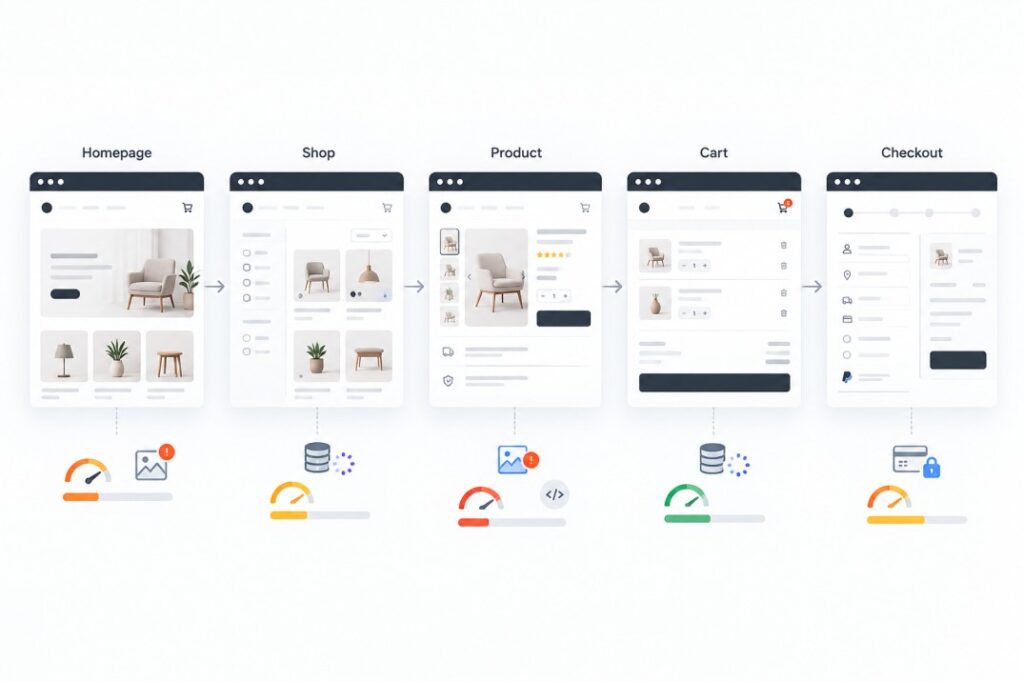
WooCommerce store slow problems are usually caused by different issues on different pages, so the best approach is to diagnose the homepage, shop, product, cart, and checkout separately.
Identify the slow page and request before changing hosting, plugins, or cache settings. A homepage speed score cannot tell you what happens when a shopper selects a variation, updates a cart, or submits an order. I compare those actions separately on a consistent device and connection. The useful measurement is the one that matches the delay your customer experiences.
WooCommerce Store Slow: The Short Answer
Open the store in a private window and follow a normal purchase route: homepage, shop, category, simple product, variable product, cart, and checkout. Repeat the slow step to rule out a temporary network delay. Note whether the wait is during connection setup, before the server responds, while the browser renders the page, or after an action such as calculating shipping.
- Before a response arrives: compare connection timing, server response, cache status, and any expensive PHP or database work.
- While the page appears: inspect image transfer, render-blocking assets, and third-party resources.
- After an interaction: inspect the specific cart, variation, search, shipping, or payment request.
Use the browser’s Network panel to see which request takes time. Compare a first uncached visit with a repeat visit; a warm public-page cache can hide slow work. Use a test product for cart and checkout checks so you can follow the purchase journey safely.
What Usually Slows Down the Homepage?
On some stores, the homepage has a large hero image, product highlights, banners, or video. Check the transferred size of the image visible first, not just its layout dimensions. A large source file displayed in a small CSS box still has to be downloaded. If the main image is above the fold, lazy loading it may delay the moment the page looks ready.
Then inspect scripts and styles loaded on that page. A popup, chat widget, slider, analytics tag, page builder, or store extension may add work even if its feature is barely used there. I match each costly request to the feature that loads it before deciding whether to defer or remove it. Minification can reduce file size, but it will not fix an unnecessary remote call or a script doing too much work.
Shop and Category Pages: Watch Queries, Filters, and Images
A listing page has to find the right products, apply ordering and visibility rules, and sometimes build filter counts. It also sends product cards and thumbnails to the browser. Compare a small category with a large one under the same conditions. If only the large listing is slow, inspect its queries, filters, product count per page, and transferred images before treating it as a site-wide hosting problem.
Filters and variation-aware availability can add database work on a large catalogue. Look for repeated queries from a filter extension and check whether its assets load on pages that do not use it. Match thumbnail files to the card layout. If you reduce products per page, test whether shoppers can still browse and find what they need.
Product Pages: Galleries, Variations, and Add-ons
Start with the gallery’s downloaded files and the number of images loaded immediately. Then compare a simple product with a variable product. Variation selection can involve extra data or a separate request, depending on the product and extensions. Reviews, recommendations, stock notices, and product add-ons may also add browser or server work.
I time the initial load and the option change separately. If the page appears promptly but choosing a size stalls, I inspect that interaction rather than starting with the gallery. If every product is slow, shared theme or plugin assets are worth checking. If only one is slow, its variations, images, and product-specific add-ons are better leads.
Cart Performance Is Different
The cart reflects a customer’s session rather than the same content for every visitor. A quantity change may recalculate totals, coupons, taxes, or shipping. Extensions can add processing, while a shipping service may add network delay. When the cart page opens quickly but “Update cart” hangs, I inspect that update request and its calculations.
Some themes or extensions also refresh mini-cart content or use cart fragments. Check whether those requests run where they are needed and how long they take. Any cache adjustment here needs a functional check: add an item, change its quantity, remove it, and confirm the displayed totals match the session.
Checkout Can Be Slow for External Reasons
Checkout may wait on PHP processing, payment gateways, shipping quotes, tax calculations, address validation, or fraud checks. The browser’s request timing and relevant server or gateway logs can help separate a slow server response from a delayed external call. In a safe test flow, compare available payment and shipping methods to see whether one path causes the wait.
Checkout must show current customer and order data. Applying public full-page caching to it can return stale or incorrect information. If you find checkout in a page-cache rule, correct the rule and test totals, payment, and order creation. WooCommerce’s cache guidance calls for excluding Cart, Checkout, and My Account from page caching.
Plugin Count Is Not the Whole Story
A plugin list tells me what to investigate, not which extension is responsible. One small plugin can run a costly query or call a remote API on every request; several plugins may have little effect on the slow page. I look for duplicate features, assets loaded without a purpose, repeated queries, and hooks running on the wrong pages.
Test a suspected extension on staging or during a controlled maintenance window. Disable it, compare the same request, and check the customer journey before keeping the change. A faster checkout is no improvement if a required shipping or payment option disappears.
Images Still Matter
Image transfer matters most when it is part of the slow page’s critical path. Check downloaded bytes and the size actually displayed. Export and compress suitable files, and use WebP or AVIF if your image workflow serves them reliably. WordPress can offer smaller responsive candidates when the image has the necessary generated sizes and markup.
Images farther down the page can usually load later. Keep the main visible image available early, and retain width and height information to reduce layout shifts. Check the result on a phone as well as a desktop; product detail still has to be clear enough for a buying decision.
When Hosting Is Actually the Bottleneck
Hosting becomes a stronger suspect when uncached requests spend a long time waiting for the server’s first byte, particularly under load. Compare cached public pages with dynamic requests while remembering that they use different processing paths. Check PHP workers and memory, PHP version, database health, error logs, and any resource limits reported by the host. An object cache may help repeated database work, but only if the workload and configuration support it.
More server capacity may help a saturated PHP process; it may do little for a slow gateway call or oversized image sent to the browser. Likewise, compressing images will not resolve a database query holding up an uncached response. Use the request timing to decide which component to investigate next.
Should Cart and Checkout Be Cached?
Public pages such as the homepage or product listings can often use full-page caching when configured for the store. Cart, checkout, and account pages contain customer-specific information and normally need to bypass it. Session cookies and add-to-cart requests need compatible handling too. After a rule change, test as a guest and a returning customer, including a coupon if the store offers one and a complete test order.
A Practical Diagnosis Example
Imagine a store whose homepage opens quickly but whose checkout pauses after a shopper selects shipping. I would time the shipping update request, compare available methods, and check related logs, plugin hooks, and cache exclusions. I would not compress the homepage hero image or add a speed plugin yet; neither addresses the request that stalled. Next, I would repeat the checkout test with a different shipping method in a safe test environment. If only one method causes the pause, its calculation or external service becomes the next lead. If both are slow, I would inspect shared checkout processing.
How I Diagnose a Slow WooCommerce Store
I keep a record of the route, device, connection, and request timing so each test is comparable. The sequence below helps me move from a visible symptom to a likely cause:
- Measure: reproduce and record the slow page or action.
- Identify the page type: note whether the response is public, session-specific, or part of an interaction.
- Check server response: separate connection time, server wait, and browser rendering.
- Check media: inspect transferred images on the affected page.
- Check frontend assets: identify scripts and styles that delay that view.
- Check extensions: look for repeated queries, hooks, or remote calls.
- Check database work: inspect slow queries and autoloaded options when server timing points there.
- Check caching: confirm public pages benefit without serving customer data from full-page cache.
- Test the purchase flow: validate sessions, totals, gateways, and order creation after a change.
- Compare again: retest the same route and keep the change only if it helps without breaking the store.
This order keeps the investigation tied to the observed delay. WooCommerce’s own troubleshooting guidance also starts with identifying the root cause.
When It Makes Sense to Ask for Help
Ask a WooCommerce developer for help when checkout is affected, when a change could put orders or customer data at risk, or when you cannot isolate a server delay from a database query or external service. Bring reproducible details: the URL, device, time, action taken, and the request or error that stalled. Those details let a developer begin with the failing step.
If you would like a measured review of your store, my Speed Optimisation service starts with the bottleneck. For a store that needs broader structural work, see WooCommerce Store Development.
A faster store starts with a specific observation: which page or action is slow, and which request is holding it up? Once that is clear, you can improve the part of the purchase journey that needs attention.