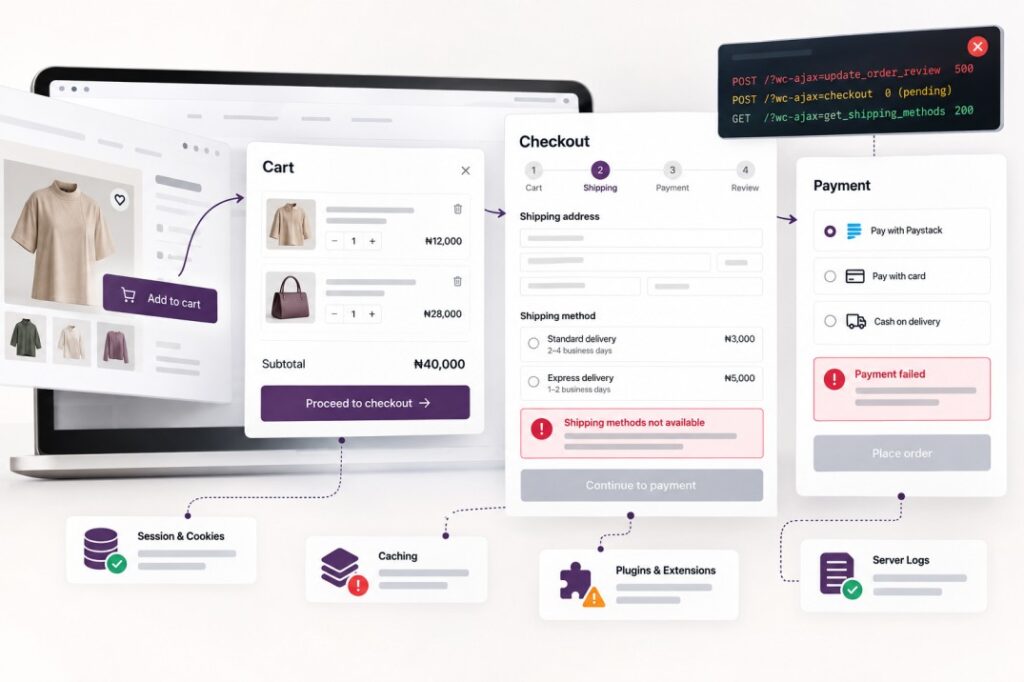
WooCommerce checkout not working? When WooCommerce checkout is not working, the safest first step is to find the exact point where the customer journey breaks. Find the first step that fails: loading the page, updating the address and shipping, choosing payment, placing the order, or confirming it. The cause may be a cached customer page, a blocked request, a JavaScript error, a shipping or payment rule, an incompatible extension, or a server error. Check what the shopper sees and what WooCommerce records before rebuilding anything.
WooCommerce Checkout Not Working: The Short Answer
Follow one purchase from product to cart, checkout page, address, shipping, payment choice, Place Order, order record, payment confirmation, and thank-you page. Use a simple test product and note the first step that does not behave as expected. If the page loads but the payment method vanishes after entering a postcode, investigate that transition rather than the entire site.
Write down the browser, device, guest or signed-in state, product, address, time, and exact message. Ask whether an order or charge already exists before repeating a submission. A failed thank-you redirect after a recorded payment is a different problem from a button that never sends an order request. That distinction protects customers from duplicate charges and gives a developer a useful starting point. WooCommerce Checkout Page Is Blank or Missing
First open WooCommerce > Settings > Advanced and confirm which page is assigned as Checkout. Edit that page and check that it contains the intended Checkout block or classic [woocommerce_checkout] shortcode. A page can exist in WordPress but show no checkout because its content was removed, a builder replaced it, or a theme template hides it. WooCommerce has a guide to store pages that do not display.
If the URL returns a 404, check the page address and permalink configuration before changing the checkout design. If it shows a white screen or a critical error, note the time and review the PHP or WooCommerce error log; PHP is the server code that builds the page. Test a standard theme or page layout on staging if the page assignment and content are correct. Do not make live template changes while customers are ordering.
WooCommerce Checkout Keeps Loading or Spinning Forever
A spinner means the browser is waiting for a checkout update or cannot use its response. Open the browser’s developer tools, select Network, reload checkout, and enter an address. Look for the request that stays pending or fails. Classic checkout commonly updates the order review through AJAX, meaning a background request without a page reload. The Checkout Block uses WooCommerce’s Store API. The exact URL differs, so follow the failing request rather than searching for one endpoint on every store.
Record its status and response. A 403 can suggest a security rule, a 500 a server error, and an HTML response where checkout expects data can point to a redirect or cache problem. Check the Console for JavaScript errors at the same time. Compare the request time with WooCommerce logs, a shipping-rate service, address validation, or a payment integration. WooCommerce’s endless checkout spinner guidance also covers URL mismatches and invalid responses. Do not assume every spinner is a slow server.
WooCommerce Place Order Button Does Nothing
First look for an on-page field error: a required address, terms checkbox, shipping choice, or payment field may need attention. Check whether the button is disabled or covered by a visible overlay. Then open the Console, which lists browser script errors, and Network before clicking once. If no request appears, investigate validation, JavaScript, or a checkout customization that prevents submission.
If a request is sent, the button worked; inspect the response and order record instead. A rejected field, blocked request, payment error, or redirect can leave the shopper on the same page and look like a dead button. On staging, compare the native checkout with the customized version and change one suspected script or field rule at a time. Avoid repeated live clicks until you know whether the first attempt created an order.
Payment Methods Are Missing at Checkout
Check WooCommerce > Settings > Payments to see whether the gateway is enabled and fully configured. Then use the same currency, billing country, cart contents, and customer state as the shopper. A gateway can be enabled yet unavailable for that combination because of its provider rules, conditional-payment settings, or an incomplete account setup. Confirm that checkout uses HTTPS and inspect any gateway notice or log; never share secret keys.
Also identify whether the page uses the Checkout Block or the classic shortcode. Payment methods must support the checkout experience in use, and a method that appears in classic checkout may not appear in the block. WooCommerce’s Checkout Block documentation explains that its payment options show methods available to the store and compatible with the block. Test with a simple product and a second enabled method, if available, to narrow the condition.
Payment Fails After Clicking Place Order
Look for a new order before changing the checkout page. If an order exists in Pending payment or Failed status, the submission reached WooCommerce; inspect its notes for a decline, authentication issue, timeout, or missing confirmation. Then compare the gateway dashboard with the order. A webhook or callback is a message from the payment provider back to the store; if it fails, the provider and WooCommerce may disagree about the result. Recent Checkout Block versions can wait until nearer Place Order to save a draft, so a missing draft before submission is not itself a fault. A draft record alone is not proof of a completed payment attempt.
Check the gateway’s test or live mode, supported currency, HTTPS, configuration, and logs at WooCommerce > Status > Logs. If the provider shows a charge while the store does not show payment, reconcile that attempt before asking anyone to retry. WooCommerce’s order troubleshooting guidance recommends checking order notes and gateway records first. Use a gateway test mode or a controlled staging purchase for further diagnosis, without exposing credentials or repeatedly charging a real card.
WooCommerce Shipping Is Not Showing
Enter the exact delivery country, region, and postcode reported by the shopper. In WooCommerce > Settings > Shipping, find the first zone that matches that address and check whether it has an enabled method. WooCommerce matches one zone, in order; a broad zone above a specific one can prevent the intended method from appearing. Its shipping-zone guide explains that matching order.
Next check whether the product requires shipping and whether product classes, free-shipping thresholds, cart contents, coupons, or conditional-shipping rules hide the method. If a carrier rate should appear, inspect its API request and log; an API is the connection to that carrier’s service. A rate missing for one postcode suggests a rule or address match, while rates missing for every address point toward broader configuration or an integration failure. Test each case with the same cart.
Cart Is Empty or Products Disappear Before Checkout
WooCommerce tracks a shopper’s cart through a session, which links that browser’s visit to its cart data. Check the real cart page first. If only the header mini-cart looks empty while the cart page still has the item, the display may be stale; the product has not necessarily vanished. Compare guest and signed-in visits and note whether the item disappears after navigation, login, a domain change, or entering checkout.
Inspect whether the site switches between HTTP and HTTPS or between domains or subdomains, and whether session cookies remain present. Check page, server, and CDN cache rules for customer-specific responses. If the cart is not updating, watch the request triggered by Add to cart or a quantity change and compare its response with the visible cart. A theme or plugin that maintains a second mini-cart can show old data even when the WooCommerce cart is correct. Do not clear all sessions as a first experiment.
Checkout Totals or Quantities Are Wrong
Change one quantity or address and watch whether the checkout update request completes. If the server returns the correct amount but the page keeps an old total, suspect stale front-end state, delayed JavaScript, or cached markup. If the server itself returns the wrong amount, inspect the calculation: tax location, shipping method, coupon rules, product price, and any dynamic-pricing or currency extension.
Use one simple product without a coupon, write down the expected subtotal, then add one condition at a time. Compare a guest session with a signed-in one if prices depend on customer role. A session mismatch can make the browser display one cart while the calculation uses another. Treat a wrong total as an order accuracy issue, not merely a cosmetic glitch; do not run a live payment to see if it fixes itself.
Checkout Broke After a Plugin, Theme, or WooCommerce Update
Record exactly what changed and reproduce the same failure in a private window. Timing gives you a lead, not proof that the latest update caused it. Compare WooCommerce > Status, PHP and WooCommerce logs, the failing browser request, and any outdated-template warnings. A WooCommerce update can expose an incompatibility in an extension or custom code that used an older checkout behavior.
Back up the site, reproduce the issue on staging, and isolate the component that touches the failing step. For example, if only one carrier quote fails, test that integration before disabling unrelated plugins. If a standard checkout works on staging while a customized one fails, compare their templates and scripts. Keep the tested fix only after a complete purchase path still works. Do not disable payment, tax, or shipping plugins blindly on a live store.
Cache, CDN, and Optimization Settings Can Break Checkout
Cart and checkout pages show customer-specific data. Confirm that full-page caching excludes Cart, Checkout, and My Account at the WordPress plugin, host, and CDN layers; a CDN is the service that may cache pages in front of the server. WooCommerce’s caching guidance covers those exclusions and its cart and session cookies. An administrator may bypass cache, so a working admin test does not prove a guest checkout is healthy.
If the page itself is uncached, inspect whether JavaScript delay, defer, or minification changes the order in which checkout and gateway scripts run. Compare one setting at a time on staging, clear the affected cache, and repeat the same guest journey. An optimization that makes checkout load faster but breaks payment fields is not a successful performance fix. If the whole store is slow as well, my page-by-page WooCommerce speed diagnosis separates broader performance issues from checkout failures.
Theme and Template Overrides Can Break Checkout
Check WooCommerce > Status > Templates for outdated overrides in the active theme or child theme. An override is a copied WooCommerce template that a theme customizes; it may need updating when WooCommerce changes the original. A checkout builder can also replace fields or scripts without appearing in that list. Missing hooks, fields, or scripts can affect one step while the page still looks normal.
Check whether the store uses a Checkout Block or the classic shortcode before changing a template. Newer WooCommerce installations commonly use blocks, while existing stores may still use classic checkout; extensions can support them differently. Compare the custom checkout with the intended native flow on staging. WooCommerce’s template update guidance recommends backing up an override and carrying forward intentional changes rather than replacing it blindly.
The 10-Minute WooCommerce Checkout Triage
This is a first pass to locate the failure, not a promise to repair every checkout in ten minutes. Keep the same product and address throughout so each result is comparable:
- Test in a private window as a guest, without placing a live charge.
- Reproduce the exact symptom and write down the first failed step.
- Check WooCommerce > Status for page, log, and template warnings.
- Open the browser Console and note errors at the failing moment.
- In Network, capture the checkout request, status, and response.
- Verify Cart and Checkout page-cache exclusions at every cache layer.
- Check recent order notes and WooCommerce or gateway logs.
- Try an available payment or shipping alternative in a safe test.
- Review recent changes without assuming the latest one is guilty.
- Back up and isolate the suspected conflict on staging, then retest the journey.
Symptom → Likely Area to Check
Use the first failed step to choose a starting point; each row is a lead, not a diagnosis.
| Symptom | Likely area | First check |
|---|---|---|
| Checkout blank | Page, template, or PHP | Verify page assignment and logs |
| Spinner never stops | Request, JavaScript, or cache | Inspect pending request and Console |
| Place Order does nothing | Validation or JavaScript | Check field errors and Network |
| Payment methods missing | Gateway or compatibility | Check gateway conditions |
| Payment fails | Gateway, API, or webhook | Check order notes and logs |
| Shipping missing | Zone, address, or rules | Verify matched shipping zone |
| Cart empties | Session or cache | Compare cart page and mini-cart |
| Wrong totals | Tax, shipping, or pricing | Test simple product without coupon |
What I Would NOT Do First
I would not rebuild the store, add another speed plugin, change hosting, replace payment credentials, delete sessions, or redesign checkout because one shopper saw a spinner. Each action changes several variables and can hide the original cause. I would also avoid switching off random production plugins while customers are paying.
First capture the failed request, any order or transaction, and the time of the problem. If evidence points to a particular cache rule, gateway, or extension, test that hypothesis on a backed-up staging copy. A focused repair is easier to trust when the same purchase journey fails before the change and completes after it, with totals and order status checked.
A Practical Example: Empty Mini-Cart but Products Still Exist
Symptom: A shopper adds a product, opens another page, and sees an empty mini-cart. The full cart page still shows the item. This is a diagnostic example, not a client case study.
Check: Repeat the route as a guest. Compare the full cart with the mini-cart’s update request, its response, and the page-cache behavior. Note whether the theme and an extension both render a mini-cart.
What the result means: If the full cart and WooCommerce session still contain the product, the visible mini-cart is stale. Payment settings and product records are unlikely to explain that display mismatch.
Next test: On staging, bypass the relevant cache or use the standard mini-cart for one controlled run. Then repeat navigation, quantity changes, and checkout. If the display now follows the real cart, inspect that layer’s refresh logic rather than rebuilding checkout.
When Does a Checkout Problem Actually Need a Rebuild?
Most failures have a narrower cause: a page setting, one integration, a cache rule, or an outdated override. A rebuild becomes reasonable when duplicate cart and checkout systems, obsolete overrides, and conflicting custom code are so embedded that repairing one symptom repeatedly exposes another. The question is whether the purchase flow can be maintained safely after a focused repair.
Map what must be preserved—products, orders, customer access, payment and shipping rules—then compare the cost and risk of repair with a planned replacement. Rebuilding should follow evidence, not frustration with one broken button. If the discussion has become a wider platform decision, my WooCommerce vs Shopify guide for small businesses helps frame that separate choice.
When It Makes Sense to Ask for Help
A WooCommerce checkout not working issue can come from payment settings, shipping rules, plugin conflicts, cache, theme templates, or server errors. Ask for help when payments, orders, or customer data may be affected; the store is live and changes are risky; several systems interact; the failure is intermittent; or the logs do not explain it. Bring the product, shopper state, address, exact action, time, and a redacted error or request ID. Keep passwords, secret keys, and payment details out of messages.
For a targeted investigation or ongoing fixes, see my Maintenance & Support service. If the diagnosis shows that the cart and checkout structure itself needs replacement, WooCommerce Store Development covers a planned rebuild. The recommendation should follow what the checkout evidence shows.